
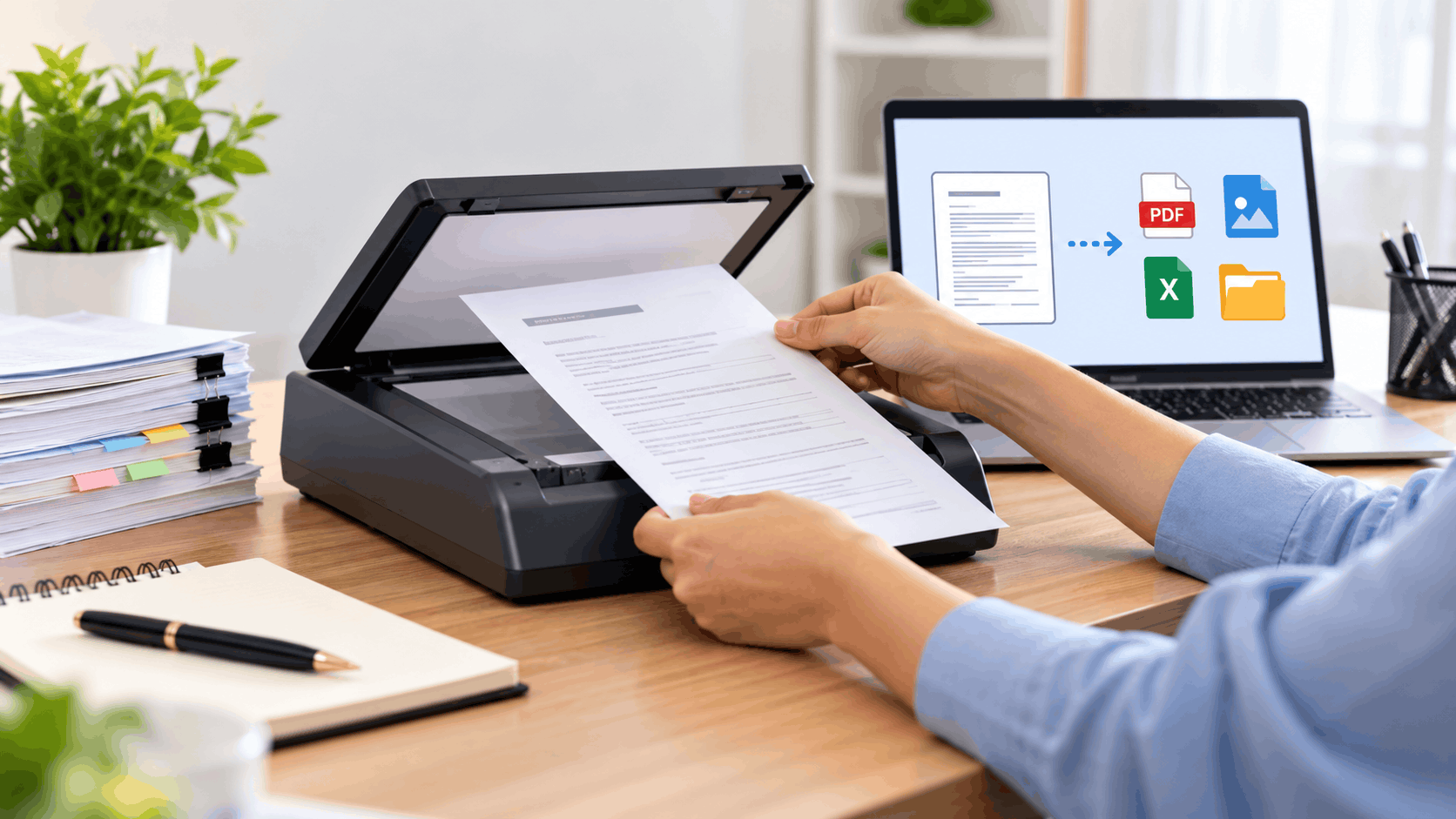
Filing cabinets fill slowly, and the cost of that growth appears only when someone needs one invoice from three years ago. Digitization removes that cost by turning each sheet into a file that can be searched, shared and backed up. The process is simple in principle, but the quality of the result depends on a handful of decisions made before the first page is scanned.
What Is a Digital Copy?
Digital copy meaning is straightforward: it is an electronic version of a document, image or record, stored as a file on a computer, phone or cloud service. A paper contract that has been scanned into a PDF is a digital copy of that contract. The same idea sits behind the terms soft copy and e copy, which are used interchangeably in everyday office language.
A digital copy means more than a photograph of a page. A well-made one is legible, correctly named, searchable by text and stored where authorised people can retrieve it. The table below compares the two formats.
| Feature | Hard Copy (Paper) | Soft Copy (Digital) |
|---|---|---|
| Storage | Cabinets, boxes, rooms | Drives, cloud services |
| Search | Manual, page by page | Keyword search with OCR |
| Sharing | Courier, hand delivery | Email, links, shared folders |
| Backup | Photocopy only | Multiple automatic copies |
| Risk | Fire, water, loss | Corruption, unauthorised access |
Why Paper Documents Should Be Digitised
The strongest argument is retrieval time. IDC research cited by Cottrill Research indicates that knowledge workers spend roughly 2.5 hours per day searching for information. Not all of that time involves paper, but a searchable archive removes a large share of it.
Digital files also support remote access, controlled sharing and disaster recovery. A scanned and backed-up record survives a flooded storeroom, which a paper original does not. Floor space and physical handling costs fall as the paper volume shrinks.
Step 1: Audit and Prioritise What to Scan
Digitising everything at once is rarely practical. A short audit sorts documents into three groups: records needed daily, records required for compliance and records kept only in case of future need. Active files and legally required records should be scanned first, while low value material can wait or be discarded under the organisation's retention policy.
The audit should also note physical condition. Torn, brittle, stapled or oversized documents need special handling and may require a professional service.
Step 2: Prepare the Documents
Preparation determines scan speed. Staples, paper clips and sticky notes must be removed, folded pages flattened and damaged edges taped or sleeved. Documents should be sorted into batches that share a type, such as invoices, contracts or correspondence.
Batch separation allows consistent settings and consistent naming. It also makes quality checks quicker, because each batch can be reviewed against a single standard.
Step 3: Choose the Right Equipment
The right scanner depends on volume and document type. The table below summarises the common options.
| Option | Best For | Limitation |
|---|---|---|
| Phone scanning app | A few pages, quick copies | Variable lighting and angle |
| Flatbed scanner | Bound, fragile or irregular items | Slow for large volumes |
| Sheet-fed scanner with automatic feeder | Stacks of loose pages | Not suited to delicate paper |
| Scanning service bureau | Very large archives | Higher cost, handling risk |
A phone app is adequate for occasional use, but an office with regular volume benefits from a sheet-fed scanner with duplex scanning. Large archives are often cheaper to outsource than to scan internally.
Step 4: Set the Correct Scan Quality
Resolution is the setting that most affects readability. The Massachusetts Archives digitization guidelines recommend 300 to 400 PPI for black and white printed text documents, and 300 to 600 PPI for damaged text documents. Higher resolution produces larger files without much visible benefit for ordinary correspondence.
Colour mode should match the content. Black and white suits plain text, greyscale suits handwriting and faded print, and colour is needed only for photographs, stamps or colour coded material.
Step 5: Apply OCR to Make Files Searchable
Optical character recognition converts the image of a page into searchable text. Without it, a scanned PDF is a picture, and searching for a word inside it returns nothing. Most modern scanners and PDF editors include OCR as a built-in option.
Accuracy depends on the scan. Skewed pages, low contrast, faded ink and stains reduce recognition, so poor scans should be redone rather than corrected in software afterward. Language settings should also match the document, particularly for multilingual records.
Step 6: Name and Organise Files Consistently
Searchable text helps, but a clear naming system helps more. A convention should combine the date, document type and a unique identifier so that files sort correctly and can be recognised without being opened. One example follows.
2026-10-14_Invoice_VendorName_00123.pdfFolders should mirror how people look for documents, usually by department, client or year. A short written guide shared across the team keeps the system consistent after the first month.
Step 7: Check Quality Before Moving On
Each batch should be reviewed for missing pages, crooked scans, unreadable text and incorrect file names. Spot checks on a sample are acceptable for routine records, but full review is advisable for contracts and financial documents. Errors found at this stage cost minutes, while errors found after the paper is destroyed may be permanent.
Step 8: Store, Protect and Back Up
Digital files need the same care as paper originals. Sensitive records should sit behind access controls, and storage should include at least one backup in a separate location. A common practice is to keep three copies on two types of media, with one stored off site.
Format choice also matters for long term retention. PDF/A is an archival variant of PDF designed for long term preservation, and Foxit's digitization checklist advises 600 DPI for archival storage and for documents with small text.
Step 9: Retire the Paper Safely
Original documents should be discarded only after retrieval has been tested and backups confirmed. Some records must be kept in paper form under legal or regulatory rules, so retention requirements should be checked first. Confidential paper should be shredded, not simply thrown away.
How to Make a Soft Copy Quickly
A soft copy of a single document takes only a few minutes with a phone. Place the page on a flat, dark surface under even light, open a scanning app, align the edges and capture the page. Save the result as a PDF, apply the app's text recognition option if available and rename the file before storing it.
This method suits receipts, forms and short letters. For anything larger than a few dozen pages, a dedicated scanner is faster and gives more consistent results.
Common Mistakes to Avoid
Scanning at a very low resolution to save space is the most frequent error, and it produces text that cannot be read or recognised. Inconsistent file names are a close second, since they turn a digital archive into a disorganised folder. Skipping the backup is the most serious error, because a single drive failure can erase the whole project.
Destroying originals before a quality check is the error with the highest cost. Every batch should pass review first.
Turn Your Archive Into a Working System
Digitization delivers value only when the resulting files are organised, secure and easy to retrieve. Margo Digitech works with businesses on web development, cloud services and AI automations that connect scanned records to the tools teams use every day. A searchable archive is a practical first step toward a wider digital workflow.